Epson WorkForce 610 Color Inkjet All-In-One Printer

This remarkable product manages to print documents up to two-times faster than leading color inkjet alternatives from competitive companies...

Activate Account Administrator di Windows 7 dan Vista : > "Run as administrator"...

HOW TO COPE VIRUS SHORTCUT 1234 RUNMIT

The characteristics of affected Virus 1234 Shortcut: 1. Shortcut Virus 1234 Runmit WATERMARK.EXE this will make the existing file in two places, namely:...

HOW TO SOLVE ERROR C000 ON CANON PIXMA MX870

How to solve error C000 on Canon Pixma MX870 Solution 1: Switch off the printer Disconnect the power cable Open door: ....

SPESIFIKASI TOSHIBA SATELLITE L645-1147XB

Spesifikasi Laptop Toshiba Satellite L645-1147XB O/S: Microsoft Windows 7 Home Premium Processor: Intel® Core™ i5-480M Processor (2.67 GHz, Cache 3 MB). Chipset: Intel HM55. Memory: 2 GB DDR3 SODIMM PC-8500, Max. Memory 8 GB (2 DIMMs) Graphics Engine: ATI Mobility Radeon HD 5470 512 MB...

Showing posts with label How To Fix Computer. Show all posts

Tuesday, May 31, 2011

How to Fix Your Own Computer

You can upgrade or fix your own computer if you have the right information, computer tools and service manuals for your PC. As you know, hiring a professional to upgrade your PC or replace a drive, graphics card or memory, can be expensive. There are some jobs the average computer user can do on their own provided they have the right information at their fingertips. The following information will give you the knowledge you need to repair your own computer.

Essential Tools For Computer Repair

Aside from saving a lot of money, there is a lot of satisfaction when you fix your own computer or perform an upgrade to improve its performance. But you need a few things to get started. The following are a few of the essentials we feel are necessary for the beginning computer repair enthusiast:


Service manual for your computer – Most people don’t realize your computer has a detailed service manual out there on the Internet. If you go to the manufacturer of your computer (Dell, HP, etc) You will likely find several manuals online. You probably received a Quick Start sheet of paper with your new computer. But service manuals show detailed information, such as how to take apart your computer, the specifications and part numbers for everything. A detailed service manual is a must have for home computer repair.

Computer Toolkit – You will need more than just a screwdriver for most jobs. Computer tool kits are inexpensive and contain tools you probably do not have, such as precision screwdrivers, wire strippers, and Torx bits. Having the right tools can make the job easier and reduce the likelihood your computer will get damaged by a slip or gouge of a standard screwdriver.

starter computer toolkit

Read more about this great starter computer toolkit.
Computer Troubleshooting Book – Research and learn about computers in general. Learn what makes computers “go”. There are numerous parts that interact with each other and can often produce the same symptoms when there is a problem. Learn the difference between the various ports, expansion cards, memory and other hardware before you even consider fixing your own PC.

Computer Troubleshooting Book

We recommend this book for computer troubleshooting. It has extensive flowcharts that walk you through the process of figuring out what is wrong with your computer. It’s not a huge book, which makes it easy to carry around or keep handy near your PC. Read more about this Computer Troubleshooting Book.

Upgrasde PC Book

If you’re looking to know everything there is to know about computers, Upgrading and Repairing PCs (19th Edition) is a great book for that. At nearly 1200 pages, this book covers it all.

In conclusion, you can certainly perform most computer jobs on your own if you have the right service manuals, reference books and tools to perform the task.

source : http://www.pctechbytes.com

Wednesday, May 25, 2011

How To Install A Network Printer

Installing a network printer allows multiple users and computers to share a single printer, rather than having numerous personal printers throughout the home or office. When installing a network printer, make sure it is located in a centralized place so that all users can access it conveniently, then install the software on each machine. You may find that newer versions of Windows may already have the necessary drivers installed.

Finding the Printer on the Network

To install the printer using an IP address, go to Start>Control Panel>Printers and Faxes and then click the Add Printer icon. Next, click Create a new port, then select Standard TCP/IP Port from the drop-down menu. You will then be asked to enter an IP address. Enter the IP address of the print server and click Next. You will be asked to select the printer manufacturer and the model from the list. If you do not see your printer listed, insert the disk that came with the printer and click Have Disk.

If you do not know the IP address of the printer, you can sometime select Browse for printer in the beginning of the process. If the networked printer is attached to another computer is being shared, you will need to enter the name of the computer followed by the share name of the printer. For example: \\computername\printername. Newer versions of Windows (like Windows 7) make it easier to share printers through the Homegroup.


Spending extra on a network printer can save you money in the long run. Network printers can be higher grade and print cartridges can last longer than personal ink jet printers, so installing a network printer makes economical sense.

Tuesday, May 24, 2011

How to Fix Blue Screen Errors

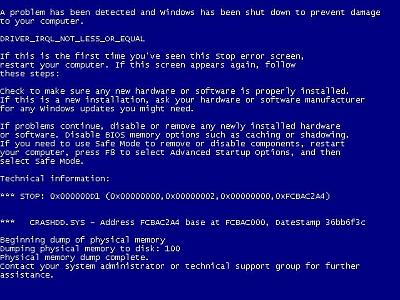
Blue screen errors, or blue screen of death (BSOD) errors, are the most severe errors Windows can encounter. Since Windows can not recover from this kernel level error, a blue screen is displayed with the error details. The error details contain a STOP error code, which indicates the type of error.


There are a lot of possible causes for blue screen errors, but most of them relate to the computer hardware. The cause of a BSOD error can be a temperature problem, a timing error, a resource conflict, hardware failure, a corrupt registry, a virus or simply a device incompatibility or driver error.

How to analyze blue screen errors

The first thing to do to analyze a blue screen error is to check the meaning of the STOP error code. You need to stop Windows from rebooting when a STOP error is encountered. Once the blue screen of death is shown, you can check the meaning of the STOP error code. Together with the filename of the driver or module, this will give an indication of the error cause.

Another option to analyze the cause of the blue screen error is to look at the Windows system event log or to debug the memory dump (minidump) that Windows created when the error occurred. The event log can be viewed using the event viewer. Right-click Computer in the Start menu, and then select Manage. In the Computer Management window select Event Viewer. The information in the event log can be of great help to isolate the cause of the blue screen error.

Reading the minidump requires a bit more technical knowledge, but Microsoft has tools to read the minidump.
Blue Screen Of Death

The most common cause of blue screen errors

In reality, the most common cause of blue screen errors is a device driver problem. Outdated, incorrect or corrupt drivers can cause the system to encounter a STOP error, resulting in the BSOD.
So the easiest way to try and fix a blue screen error is to reinstall and update your system’s device drivers. This will ensure that all driver bugs are fixed and that all hardware has the correct driver.

If you know which device caused the error, you can update or reinstall that driver first. The file name in the blue screen of death can help identify the driver. Look for a file with the .SYS extension and search for that file name.

If you do not have the drivers for all devices, or are not comfortable updating your PC’s drivers manually, you can use a driver update tool to find, download and update all device drivers for you. Such tools will accurately identify your computer hardware, including any device causing an error, and automatically install the latest drivers for it.

In most cases updating or reinstalling drivers will solve your blue screen errors.

Other causes of blue screen errors

However, if updating device drivers does not fix the blue screen error, there are a number of additional things to try:
  • Load the default BIOS values – resource conflicts and timing issues can be caused by incorrect BIOS settings.
  • Update the BIOS – especially after adding new hardware or installing a Windows service pack this can help fix issues.
  • Update Windows – missing updates, including service packs can be a source of stop errors.
  • Check your system – run a virus scan and spyware scan after updating your definition files.
  • Run a memory test to check your computer’s RAM. Memory faults can easily cause blue screen errors, so see if your RAM is error free. Vista and Windows have a built-in option to test the memory, for XP you can use a program called memtest86.
  • Driver rollback – if you have recently updated a driver, you can use the driver rollback to revert back to the previous driver version.

List of STOP Errors Causing BSOD:

  • Stop 0×00000003 UNSYNCHRONIZED_ACCESS
  • Stop 0x0000000A IRQL_NOT_LESS_OR_EQUAL
  • Stop 0x0000001E KMODE_EXCEPTION_NOT_HANDLED
  • Stop 0×00000023 FAT_FILE_SYSTEM
  • Stop 0×00000024 NTFS_FILE_SYSTEM
  • Stop 0x0000002E DATA_BUS_ERROR
  • Stop 0x0000003F NO_MORE_SYSTEM_PTES
  • Stop 0×00000044 MULTIPLE_IRP_COMPLETE_REQUESTS
  • Stop 0×00000050 PAGE_FAULT_IN_NONPAGED_AREA
  • Stop 0x0000006B PROCESS1_INITIALIZATION_FAILED
  • Stop 0×00000073 CONFIG_LIST_FAILED
  • Stop 0×00000074 BAD_SYSTEM_CONFIG_INFO
  • Stop 0×00000076 PROCESS_HAS_LOCKED_PAGES
  • Stop 0×00000077 KERNEL_STACK_INPAGE_ERROR
  • Stop 0×00000079 MISMATCHED_HAL
  • Stop 0x0000007A KERNEL_DATA_INPAGE_ERROR
  • Stop 0x0000007B INACCESSIBLE_BOOT_DEVICE
  • Stop 0x0000007E SYSTEM_THREAD_EXCEPTION_NOT_HANDLED
  • Stop 0x0000007F UNEXPECTED_KERNEL_MODE_TRAP
  • Stop 0x0000008E KERNEL_MODE_EXCEPTION_NOT_HANDLED
  • Stop 0x0000009C MACHINE_CHECK_EXCEPTION
  • Stop 0x0000009F DRIVER_POWER_STATE_FAILURE
  • Stop 0x000000BE ATTEMPTED_WRITE_TO_READONLY_MEMORY
  • Stop 0x000000C2 BAD_POOL_CALLER
  • Stop 0x000000C4 DRIVER_VERIFIER_DETECTED_VIOLATION
  • Stop 0x000000CA PNP_DETECTED_FATAL_ERROR
  • Stop 0x000000CB DRIVER_LEFT_LOCKED_PAGES_IN_PROCESS
  • Stop 0x000000CE DRIVER_UNLOADED_WITHOUT_CANCELLING_PENDING_OPERATIONS
  • Stop 0x000000D1 DRIVER_IRQL_NOT_LESS_OR_EQUAL
  • Stop 0x000000D5 DRIVER_PAGE_FAULT_IN_FREED_SPECIAL_POOL
  • Stop 0x000000D8 DRIVER_USED_EXCESSIVE_PTES
  • Stop 0x000000DA SYSTEM_PTE_MISUSE
  • Stop 0x000000EA THREAD_STUCK_IN_DEVICE_DRIVER
  • Stop 0x000000ED UNMOUNTABLE_BOOT_VOLUME
  • Stop 0x000000F2 HARDWARE_INTERRUPT_STORM
  • Stop 0x000000FC ATTEMPTED_EXECUTE_OF_NOEXECUTE_MEMORY
  • Stop 0x000000FE BUGCODE_USB_DRIVER
  • Stop 0xC0000218 UNKNOWN_HARD_ERROR
  • Stop 0xC000021A STATUS_SYSTEM_PROCESS_TERMINATED
  • Stop 0xC0000221 STATUS_IMAGE_CHECKSUM_MISMATCH
  • Stop 0xC0000244 STATUS_AUDIT_FAILED
Please share your own experiences with blue screen of death errors, including possible solutions. New insights can help others, or maybe we can help you with specific STOP errors.

Monday, May 23, 2011

How To Troubleshooting Blue Screen of Death Errors

Any frequent Windows user has encountered the big bad BSOD, short for the Blue Screen of Death. This common error will make its presence known whenever the system senses that an application, piece of hardware or device driver is experiencing issues behind the scenes. What makes this particular issue so tricky is that it can be an indicator of anything from a minor glitch to a major error that causes your system to malfunction and leave you staring at the infamous blue screen.


On rare occasions, getting rid of a blue screen error is as simple as rebooting the system. Some have been lucky enough to restart their PC and never encounter the problem again. Unfortunately, this error usually means that your system is suffering from a critical error and when this is the case, it will not go away until you address the matter.

There is no standard solution to fixing the blue screen problems, mainly because there are so many problems that can result in such an error. This could be anything from a new program you just installed to a memory stick you added to the computer. In order to eliminate this nuisance, you must first diagnosis the problem to find out what’s actually going on. By doing a little troubleshooting, you can narrow things down and actually find the culprit.

Check Software and Hardware Components

The easiest step to eliminating blue screens is uninstalling any new software or hardware recently installed on the machine. If you encountered the problem after adding on a new component, this is likely the source of your problem. This could be due to a failed installation or incompatibility issues related to the software or a driver the device needs to function.

Check Your Memory Status

Blue screen errors could also appear if you recently added more RAM to your computer. You can find out if your RAM is faulty by running a diagnostic utility. If you don’t have such a tool handy, you will have to get more hands on by opening the computer case and removing the stick of RAM you just installed. From there, you can fire up the machine to see if the blue screen still shows up. This is actually easier than it sounds, but if you don’t feel comfortable opening your computer find yourself a professional technician who won’t charge an arm and leg to do the job.

Fix the Registry

The Windows registry is one of the most common causes of the BSOD. Over time, the registry gets cluttered with invalid files and other unwanted items that can make your system unstable. A blue screen of death occurrence is the ultimate sign of instability. You can run a registry cleaner to find out if the registry is stirring up all the trouble on your PC. These programs are fairly inexpensive and have the ability to automatically detect and remove the questionable items hiding out on your PC.

Conclusion

When the blue screen of death shows up, it will be accompanied by a STOP code that gives details on what caused the problem. Be sure to jot down this information when troubleshooting to better your chances of successfully fixing the issue.

Thursday, May 19, 2011

How To Fix Computer Power Supply

The power supply is the componet at the rear of the PC that the powr cord plugs into. The inside consists on a numerous wires that plug into the motherboard and other devices, such as the hard disk drive, optical drives, floppies and even video cards. The power supply will normally either work or not work. This article will show you how to determine if the power supply is the cause of your computer problems.


The power supply can partially fail, completely fail, or even fail intermittently. The PSU can cause a myriad of problems and can frustrate computer users who are not use to dealing with this temperamental component. This tutorial will help you diagnose problems with the power supply to determine if it is time to replace the unit. Links to the tools we talk about can be found on this page.

To begin, is the power supply working? Just because the computer isn’t powering up, doesn’t mean the power supply isn’t doing its job. Is the fan on the back spinning?

When troubleshooting power supply issues, you first make sure you have the correct voltage set on the rear of the unit. You should see a red switch that can be set to 115V or 230V. Depending on the country you live, this switch will need to be set appropriately. For instance, the Unites States uses 115V. Secondly, make sure you are not plugging into a power strip. Power strips can fail, so be sure to try plugging the power cable directly into a working, properly grounded wall outlet.

If you’ve been working inside the case, check the thin power wires running from the front of the case to the motherboard. These generally plug into the motherboard at the lower right of the motherboard and may be labeled something like “power sw” or “pw switch.” If this wire has popped off, the PSU will not work. To test the switch, you can remove the “power sw” wire and short the pins by touching a flathead screwdrive to the two pins. If the switch is bad, the computer should power up right away. There is also the main motherboard connector, which is the long 20 pin connector. Make sure this is properly secured. Some graphics cards or motherboards also require an addition 4-pin wire connector. If you motherboard requires it, be sure this is plugged in to the appropriate socket.

Use a multi-meter or stand alone power supply tester to check the PSU. To test with a multi-meter, make sure the power supply is plugged in to a power source and that the 20-pin connector is plugged into the motherboard. It’s best if you lay the case on it’s side so you can look directly down on the motherboard. Next, you’ll jam the black lead down into any of the black (ground) wires. Then you can probe each colored wire for the appropriate voltage. If voltage is seriously out of range or does not exist, then the power supply is bad. The colored wires should have the following voltages:

The pin-outs for an ATX power supply
Pin# Color Function
1 Orange +3.3V DC
2 Orange +3.3V DC
3 Black Ground
4 Red +5V DC
5 Black Ground
6 Red +5V DC
7 Black Ground
8 Gray Power OK
9 Purple +5V standby
10 Yellow +12V DC
11 Orange +3.3V DC
12 Blue -12V DC
13 Black Ground
14 Green PS-ON
15 Black Ground
16 Black Ground
17 Black Ground
18 White -5V DC
19 Red +5V DC
20 Red +5V DC

An alternative to the multi-meter is the stand-alone power supply tester. This small device plugs directly into the 20-pin connector of the power supply. It will immediately tell you if the power supply is bad. These are cheap and easy to use.

If you are not getting power, or if your system randomly reboots or develops bizarre symptoms that you cannot nail down, consider swapping in a new power supply. Spending too much time trying to diagnose a flaky power supply could become expensive, as unexpected dip in power can damage other computer parts, such as the hard drive.

Saturday, April 16, 2011

How To Enable the (Hidden) Administrator Account on Windows 7 or Vista

Many people familiar with prior versions of Windows are curious what happened to the built-in Administrator account that was always created by default. Does this account still exist, and how can you access it?
The account is created in Windows 7 or Vista, but since it’s not enabled you can’t use it. If you are troubleshooting something that needs to run as administrator, you can enable it with a simple command.
Note: You really shouldn’t use this account for anything other than troubleshooting. In fact, you probably shouldn’t use it at all.


Enable Built-in Administrator Account
First you’ll need to open a command prompt in administrator mode by right-clicking and choosing “Run as administrator” (or use the Ctrl+Shift+Enter shortcut from the search box)

 Now type the following command:
net user administrator /active:yes

You should see a message that the command completed successfully. Log out, and you’ll now see the Administrator account as a choice. (Note that the screenshots are from Vista, but this works on Windows 7)


You’ll note that there’s no password for this account, so if you want to leave it enabled you should change the password.

Disable Built-in Administrator Account
Make sure you are logged on as your regular user account, and then open an administrator mode command prompt as above. Type the following command:
net user administrator /active:no
The administrator account will now be disabled, and shouldn’t show up on the login screen anymore.

Tuesday, January 18, 2011

How To Fix Thumb Drive Not Recognized

If you insert a thumb drive and it’s not recognized in Windows, there are a few things you can try to get it to show up in My Computer. Thumb drives, or flash drives, are USB devices that should be automatically recognized by Windows when you insert it. There could be conflicts or partition issues that prevent it from showing up or being used to store data. Follow these steps to troubleshoot a thumb drive not recognized in your computer.


Troubleshooting Thumb drives

If you insert your thumb drive and nothing happens, follow these steps to try and correct the problem:

* Go to Start and right-click My Computer (or Computer) and select Manage. Under Disk Management, locate your thumb drive, right click and choose change drive letter. If it already has a drive letter, try assigning it a different one, as it could be trying to use a drive letter that’s already assigned to another device.

* If that doesn’t work, try rebooting the computer with the thumb drive still inserted in the USB port and see if that helps.
* Try other USB ports, or try unplugging other USB devices that might be interfering with it.
* Under Disk Management again, confirm the thumb drive is partitioned and formatted. If not, right-click the drive and proceed to format it. Note: all data will be erased from the drive.

To prevent accidental damage of your thumb drive, be sure to remove it correctly from your computer after each use. If an external drive is connected to your computer, you should see a Safely Remove Hardware icon in the system try by your clock. Before removing a USB thumb drive, click that icon and find your drive in the list and choose “remove.” It will display a message stating when the device has been stopped. You can also open My Computer and right-click the drive and then select “Eject.”


Thumb drives are fragile and quite unreliable. It may be possible it has completely failed. Be sure to use thumb drives only as temporary storage and also try and keep backups of any data you store on removable drives.

Wednesday, December 29, 2010

Why Computer Makes Weird Noises

If your computer makes weird noises, then you’re having a hardware issue of some type, which means you’ll probably need to open the case to determine what’s causing the noise. There are only a few components in the computer that move, so unless the noise is a beep, then there is likely an issue with a drive or a fan. If you are not comfortable opening the computer case while the computer is running, be sure to take it to a computer repair shop so they can help find the cause.


Noises From Inside The Computer

The components that can generate noise in the PC are the fans (there could be several), CD or DVD drive, Floppy drive, hard drive and power supply. You should start by ejecting any disks that might be inside of any of the drives, such as the floppy, Zip drive or CD drive. If there are no disks, and no activity lights on those devices, then it is likely one of the following:

CPU FAN NOISES


You have at least one, but probably as many as three or four fans inside of your computer. You are guaranteed to have a fan in the Power supply. The power supply is at the back of the computer and has an exhaust fan. Some power supplies have another fan inside that draws air upward from the CPU so the exhaust fan can pull the heat out of the case.

You probably also have a fan on the CPU. The CPU fan will rest atop a metal heat sink. This fan is responsible for pulling the heat away from the CPU to keep it cool.

There could be intake fans in the front of the case and exhaust fans going out the back.

There could also be a fan on the video card GPU, which is similar to the CPU fan, but smaller.

A couple of things can happen with fans. They can simply be dirty and need to be blown out with compressed air. Or the bearings in them are starting to fail. If it is the latter, you will need to replace the fan. If the case is open, you can usually quickly pinpoint the fan that is causing the issue. If compressed air does not fix a noisy power supply fan, replace the entire power supply immediately.


Noises From The Power Supply

The power supply can have a couple of noises. It could have a bad or dirty fan as described above, or it can be making an electrical humming noise. If blowing the fan out does not help, or if you do hear the electrical hum, unplug the computer and replace the power supply immediately.


Noises From The Hard Drive

It’s not unusual for the hard drive to churn and hum as it works. If you notice loud noises above that, a few things can be happening. There could be physical defects on the platters, causing the high-speed head to bounce. It could have a bad actuator arm or read / write head. Both of these necessitate an immediate replacement of the drive. Or it could just be struggling to read and write due to a lack of space or maintenance. Check the remaining capacity and remove anything you can if the space is low. Then defrag the drive by going to Start>All Programs>Accessories>System Tools>Drive Defragmenter.


You might also want to run the Disk Checking Utility. This will scan for physical defects on the drive and mark them as non-usable. To do this, right-click the C Drive in My Computer and select Properties. Under the Tools tab, click the Check Now button and have it scan and fix any errors it finds.

In conclusion, the power supply is not serviceable. Any noise coming from there is bad news and the power supply should be replace. All other fans–even the video card fan–can be replaced, if necessary. If the hard drive is making noises, back up all data, remove what you can and run the disk defragmenter and disk checking utility.

Friday, December 24, 2010

How to Fix A Dead Computer

One of the most difficult computer problems for a home user is troubleshooting a dead computer. When we mean “dead” we mean no signs of life at all. Where do you even begin? The average user doesn’t know the internal workings of their computer–and they shouldn’t have to. So when things go wrong, they do not know where to begin to diagnose and either fix the problem or make arrangements to have the problem corrected. The following steps will help give you some general knowledge of what could be wrong with your PC and give you some ideas on how to fix it or provide you with enough knowledge to prevent you getting ripped off at the computer repair shop.


For starters, if the computer is still under warranty, do not open the case, as this will void your warranty. HP, Dell and any other major manufacturer will respond quickly to your problems and arrange for you to send the computer in, or they might opt to send a technician out to work on the computer. If you bought the PC at a shop around the corner, send emails and begin a paper trail on the issue.

With that said, a completely dead computer will usually have either a bad motherboard, bad power supply, or a faulty case. The following steps will help you find out which is the culprit. Well start with the easiest and work our way down to the hardest. One of the first things you’ll want to do is unplug the computer and take it to a table where you can lay it flat. Open the case and check the connections to see if you notice anything blatantly wrong, then proceed with the steps below.

Diagnosing A Bad Power Supply

Power supplies can fail without warning. The worse part is, they can partially fail. This means you might be getting power to the motherboard, the fans and other components, but you do not have the correct voltages to start the motherboard.The power supply is located at the back of the case, and is where the power cable plugs into the PC.

1. Your first step should be to plug the computer directly into the wall and bypass any power strips. You should also confirm the outlet is working properly.

2. Make sure the red voltage regulator switch on the back is set to 115 if you reside in the United States, people in some countries will need to set theirs to 230. With the power off and unplugged, try toggling the switch to 230, then back to 115 to make sure it is seated in the right position.

3. Next, buy a power supply tester. Computer techs will use a multimeter to test for proper voltages. Normal users can just buy a power supply tester. These are cheap and easy to use.

4. If your power supply is bad, buy one of equal or greater power. If your current power supply is 350WT, be sure to get one that’s 350WT or higher. Shop for a power supply.

5. If you have an HP computer, read these HP power Supply troubleshooting tips.


A power supply will tend to fail before anything else, as they take the most abuse. They are the front line when a power surge or brown out occurs. The good news is, they are extremely easy to replace should you find this is the problem.

Diagnosing A Bad Computer Case

While a dead PC will either normally be a bad power supply or bad motherboard, the next easiest thing to troubleshoot is the case. How can a case go bad? A case has minimal smarts, but it does have wires leading from the power button to the motherboard that can go bad, and some even have advanced I/O panels that can fail.

1. You can try bypassing the case switch. This means you are initiating the power-on sequence without using the button on the front of the case. For this, you will need a good set of eyes and a small, flat-head screw driver. The idea is to find the wire leading from the power button to the motherboard that’s marked something like POWER SW or POWER ON. It will cover two pins on the motherboard. Carefully, with the computer plugged in, touch tip of the flat head screwdriver to both of those pins at the same time, thus “shorting” them. You will not get shocked by doing this, but you need to be careful not to scratch the motherboard. Read more on bypassing the case switch here.

2. If you have a Dell computer, read how to test a Dell I/O panel here.

Diagnosing A Bad Motherboard

The motherboard is the hardest thing to diagnose and replace. If your motherboard is proven to be bad, it must be removed from the case and replaced. Unfortunately, there’s a lot of stuff plugged into the motherboard, such as the CPU, RAM, PCI cards, Video Cards, hard drives, CD / DVD drives, power supply and fans. There are also tricky connections that must be made to the case’s power and reset switches. So replacing a bad motherboard is a long process. A bad motherboard will be determined by the following:

1. If all of the above are not the problem, the motherboard is the problem by default.

2. A bad motherboard might have visual signs of damage, such as bulging or leaking capacitors. See below.

3. With the computer unplugged, try holding in on the power button for twenty seconds. This will drain the capacitors of any excess power. The computer might start up and work fine forever. If the computer starts, then fails again after doing this, then the motherboard is bad.

4. Try removing any non-essential cards and drives in the computer. You do not need modems, sound cards, hard drives, CD / DVD drives, or floppy drives connected to boot. Our goal is to get a clean power-up situation, not boot into windows. If you remove non-essential parts and you still have no power, then the motherboard is bad.


In Conclusion, technicians will have more advanced tools and diagnostic equipment to quickly find the problem with your PC. But it will usually be one of the above that is causing the problem in a no power scenario.

And at the last : Check memory modules, & swap out to known working memory also.

Good Luck ...

Thursday, December 23, 2010

How to fix MBR in Windows XP and Vista

What is the MBR? MBR stands for Master Boot Record and it’s the first sector of your hard drive that basically tells the BIOS where to look for the operating system on your computer.

If, for any reason, the MBR becomes damaged or corrupt, then the operating system will be unable to load. You will normally see error messages like:


" Error loading operating system "

" Missing operating system "

" Invalid partition table "


These messages are definitely not fun, especially if you are not familiar with computers. Most people would automatically assume their computers are dead! However, that’s not true. Being in IT myself, these errors are actually preferably to other types of Windows errors. Why?

Well, it’s actually fairly easy to fix the Master Boot Record in XP and Vista. All you have to do is load up the Recovery Console and run a simple command. All of your data, applications, settings, etc are still intact on the drive and once the MBR is fixed, the computer will load normally.

So how can you repair your damaged MBR? Here are the steps to follow:

1. First, restart your computer with the Windows XP setup disk in the CD drive. If you don’t have your original disk, borrow one or download a ISO image from a torrent site.

2. When prompted, boot from the CD drive by pressing any key. If Windows loads automatically, you will first have to enter the BIOS setup and change the order of the boot devices to start with the CD drive.


3. Once the setup loads, you will see the option to press R to repair a Windows installation.


4. Once the Recovery Console loads up, you will have to type in a number that corresponds to your Windows installation. This is normally just 1. Press Enter and then type in the Administrator password.


5. Now at the prompt, type in fixmbr. Your damaged MBR will now be replaced with a new master boot record and your computer should now be able to boot properly. Note that you may also want to run the fixboot command to repair the boot sector with a new one.

Also, make sure you only use these commands on a system with one operating system installed. If you have more than one operating system installed, fixmbr and fixboot could mess up everything.
Fix MBR in Vista

In Vista, the procedure to fix the master boot record is a bit different. You have to start up Vista in the Recovery Environment and then run the bootrec command. Here’s how.

1. First, load up the Windows Vista disc in your drive and press any key to boot from the disc.

2. Choose the language, time, currency, etc and click Next. Now click on Repair Your Computer.


3. Choose the operating system to repair and click Next. When the System Recovery Options dialog comes up, choose the Command Prompt.


4. Now type bootrec.exe and press Enter. This will rebuild the boot configuration data and hopefully fix your problem. You can also run the command with switches to fix just the master boot record (/fixmbr), the boot sector (/fixboot), or rebuild the entire BCD (/rebuildbcd).

Good Luck...

Related Posts Plugin for WordPress, Blogger...